The Communication Interface Module (CIM)
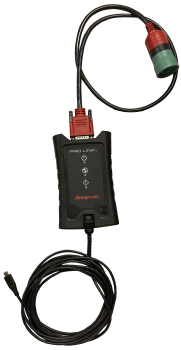
The CIM is a vehicle data communication device that is connected directly to the vehicle data link connector (DLC), and transmits vehicle data to the diagnostic tool.
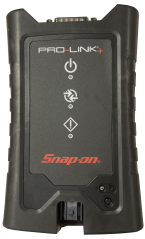
Compact Scan Module (CSM)
LEDs on the CIM indicate communication status. The following LED descriptions apply only when the CIM is powered by the vehicle (unless otherwise noted).
| ● | GREEN - Power / Communication indication |
| ● | RED - Error / Self-test indication |
| ● | BLUE - Connection / Communication indication |
Connecting the CIM
Before you scan a vehicle, the CIM must be paired via Bluetooth, or connected via USB cable to the diagnostic tool.
 General CIM Connection Instructions
| 1. | Ensure the vehicle engine is OFF and the key in the ON position. |
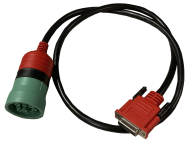
| 2. | (As applicable) Connect the specific OEM adapter to the vehicle's diagnostic connector. |
| ● | 6-pin Deutsch adapter |
| ● | 9-pin Deutsch adapter |
| ● | 16-pin J1962 adapter |
| 3. | Connect the CIM to the OEM adapter. |
| 4. | Ensure the CIM power LED is on. |
| 5. | Ensure the CIM is either paired (Bluetooth) or connected via USB cable to the diagnostic tool (see below) |
Change the CIM mode setting as applicable (Bluetooth / USB) (see below).
When the CIM is actively communicating with the vehicle, the LED on the CIM will flash.
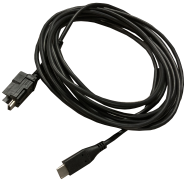
Typical OEM adapter and USB cables
Connecting the CIM (Bluetooth Mode Pairing)
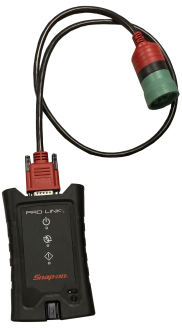
| 1. | Connect the CIM to a vehicle to provide power to it (see General Connection Instructions above). |
Typical Bluetooth CIM connection.
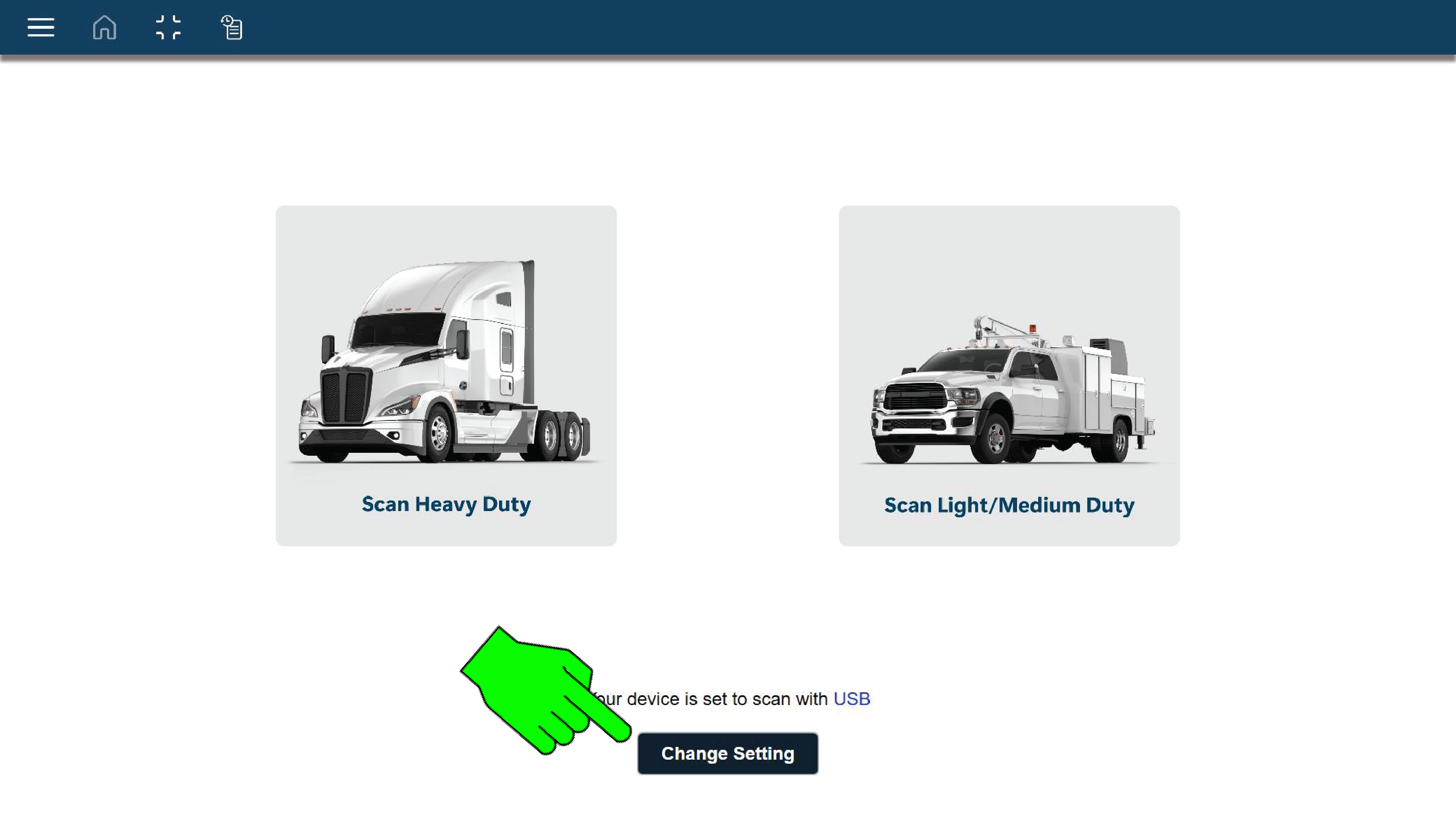
| 2. | From the Home screen select the Change Setting button. |
| 3. | Select Bluetooth,. |
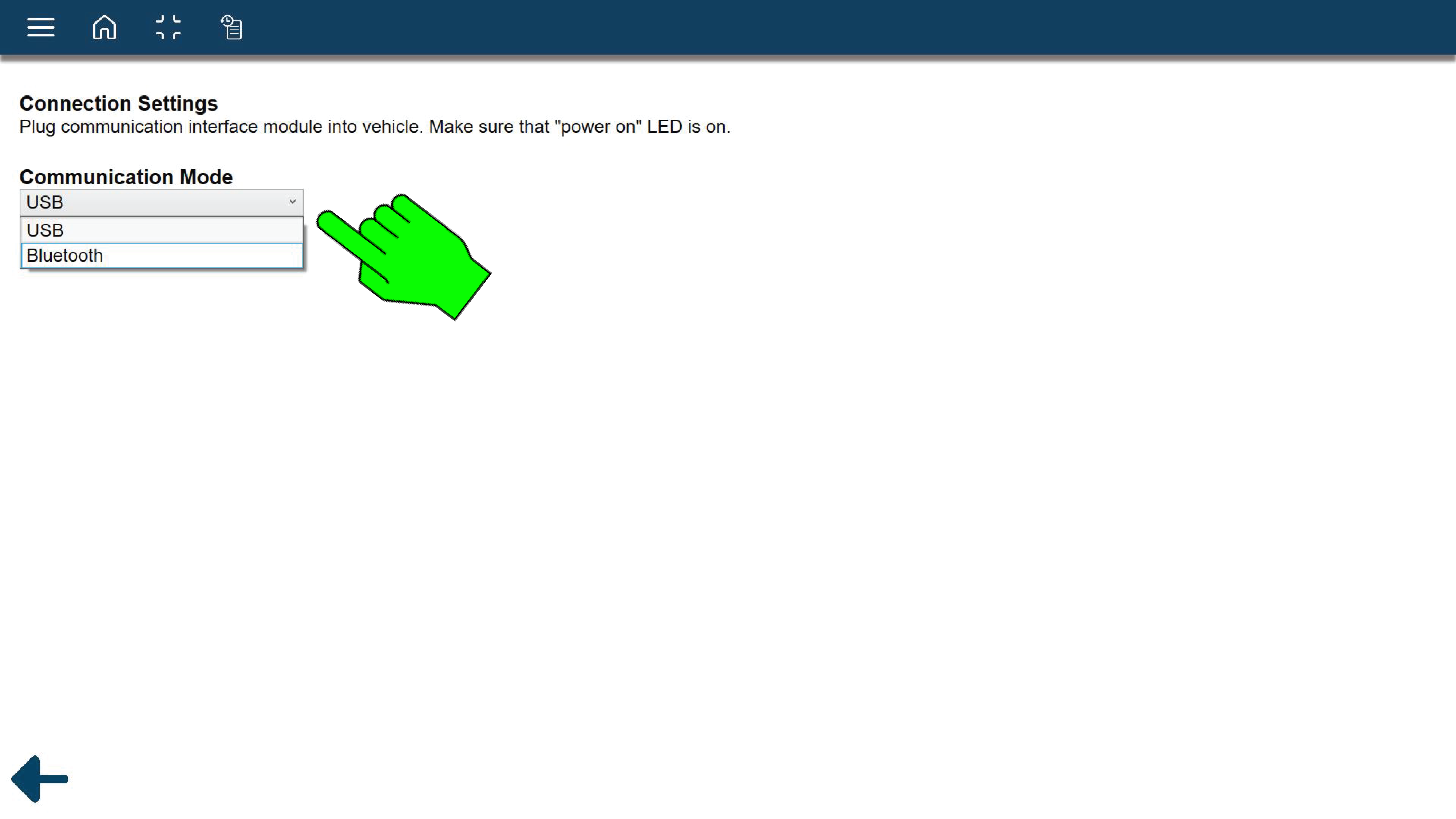
The diagnostic tool, will automatically try to pair with the CIM.
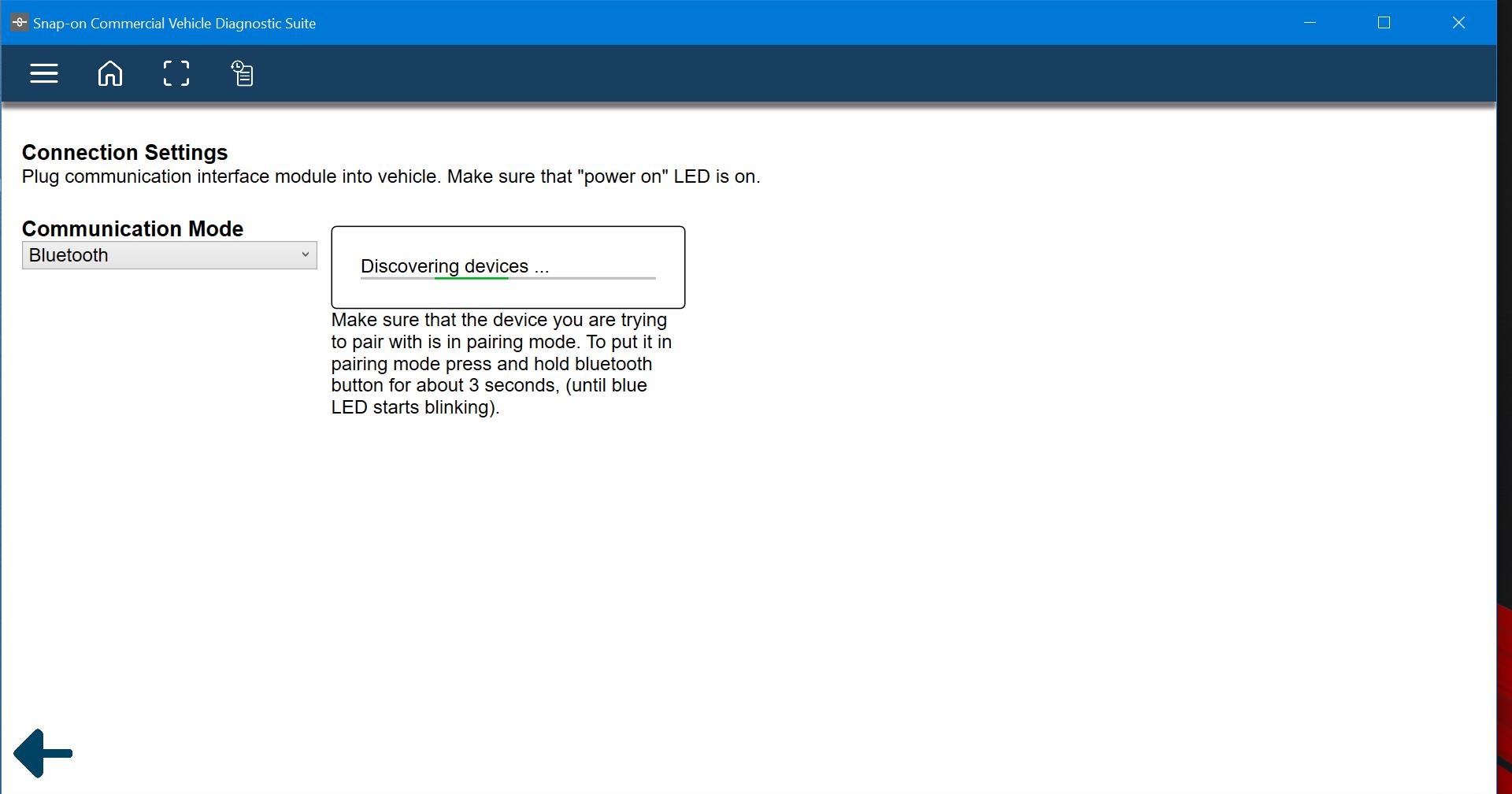
| 4. | As instructed onscreen, press and hold the Bluetooth button on the CIM for 3 seconds until the blue wireless LED indicator starts to blink. |
| 5. | After the connection is complete, connection of the CIM device will be indicated onscreen. |
| 6. | Click the back icon to return to the Home screen and start a scanning session. |
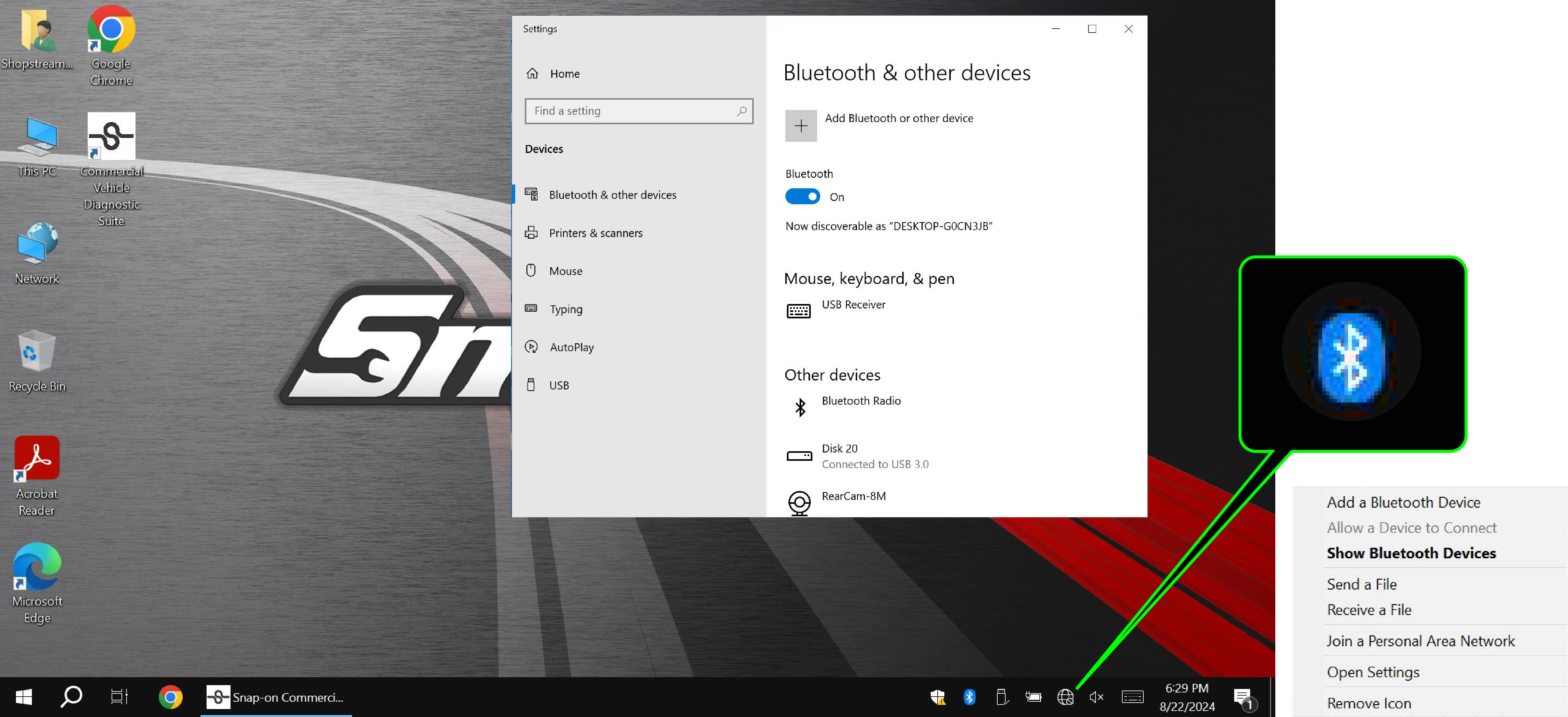
Alternate Bluetooth Pairing Method
Pairing of the CIM is also possible via the WIndows Bluetooth pairing window.
Connecting the CIM (USB Mode)
The supplied USB cable can be used to connect the CIM to the diagnostic tool in situations where Bluetooth connection is not possible.
| 1. | Connect the CIM to a vehicle (see General Connection Instructions above). |
| 2. | Connect the USB cable from the CIM to the USB port on the side of the diagnostic tool. |
Typical USB CIM connection
| 3. | From the Home screen select the Change Setting button. |
| 4. | Select USB,. |
| 5. | After the connection is complete, connection of the CIM device will be indicated onscreen. |
| 6. | Click the back icon to return to the Home screen and start a scanning session. |
Compact Scan Module (CSM)
Power Source
LED Indicators
Audible Alerts
LED Flashlight (built-in)


